
Download the media generator tool
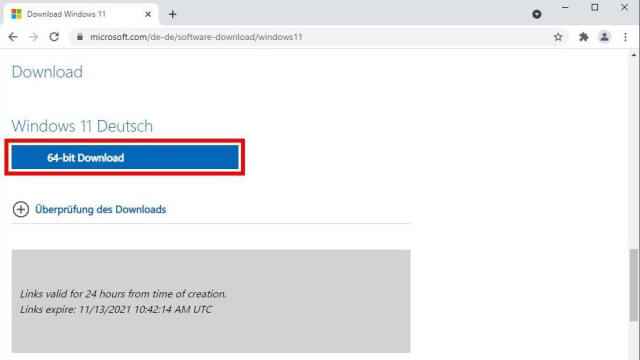
As for the previous OS, Microsoft has created its own website for Windows 11 where you can find everything you need. First, open This is the download page In any browser.
- Windows 11 – Microsoft Download Page
Microsoft has also created its own website for Windows 11. Open this download page in the browser. - Windows 11 – Microsoft Download Page
You will now see three options, of which the Installation Wizard for Windows 11 is not suitable for creating installation media. - Windows 11 – Microsoft Download Page
The second option is a media generating tool. To use it, click “Download Now”. - Windows 11 – Microsoft Download Page
Then launch the tool, for example, call the context menu in the download bar like Google Chrome and select “Open”. - Windows 11 – Media Creating Tool
Confirm the next query of user account control with “Yes”. - Windows 11 – Media Creating Tool
You must then accept the license terms for the tool. - Windows 11 – Media Creating Tool
The checkbox is activated in the following dialog. The program will automatically select the language and version. If you uncheck the box, you can set other options as well. - Windows 11 – Media Creating Tool
Now you can determine the medium. A USB stick, at least 8 GB in size, is usually the preferred method. - Windows 11 – Media Creating Tool
Now select the desired data carrier. It must be empty or contain files you do not need – they will be deleted when the boot media is set up. - Windows 11 – Media Creating Tool
The tool downloads Windows 11 and copies the files to the stick. - Windows 11 – Media Creating Tool
When the process is complete, all you have to do is click “Finish”. A bootable USB stick can be used to install Windows 11. - Windows 11 – Media Creating Tool
When specifying media, you can also select the “ISO file” option instead of “USB Memory Stick”. - Windows 11 – Media Creating Tool
After clicking the Next button, you will be taken to the Save dialog, where you can specify the path to the ISO file. - Windows 11 – Microsoft Download Page
The whole thing works without the media generating tool. To do this, open the drop-down menu under “Download Windows 11 Disk Image (ISO)” on the Microsoft Downloads page. - Windows 11 – Microsoft Download Page
After selecting “Windows 11”, click the “Download” button. - Windows 11 – Microsoft Download Page
Next, set the product language using the drop-down list and click “Confirm”. - Windows 11 – Microsoft Download Page
Finally click the download button. The browser will now download the image file and save it to the respective folder. - Windows 11 – ISO file
You will then have the ISO file. You can burn this disk image to DVD in Windows Explorer using the context menu. - Windows 11 – ISO file
All you have to do now is specify the appropriate drive and click the “Burn” button. - Rufus Portable – ISO-Date
However, with a USB stick, you can use the free “Rufus” tool. Insert the USB drive (1), including the ISO file (2), and then click the Start button (3). - Rufus Portable – ISO-Date
Again, the stick should not contain any data you need. - Rufus Portable – ISO-Date
Rufus then copies the files to the USB stick and sets them to boot media. When the process is complete, you can leave the tool again.
Now you will see three options. First (Installation Wizard for Windows 11) The update of Windows 11 on the current system is intended for installation only. Microsoft recommends that you wait until Windows Update notifies you that your computer has an update.
Behind the second option (Creating Installation Media for Windows 11) Hides the media generating tool. It is very flexible because it provides two ways to create Windows 11 startup media. To use the tool, click the button Download now. Then launch the tool, for example, by calling the context menu in the download bar below and clicking on the arrow code, just like in Google Chrome. Select the input from there Open.
Select Settings and download Windows 11
Next, confirm the user account control query and disable the license terms for the media generating tool. Checkmark is at the forefront of the following conversation Use the recommended options for this computer Set up. As a result, the application automatically selects the most appropriate settings for the language and version in its view. If this checkbox is disabled, you can set other options using the Bull-Down menus above it.
After clicking the next button, you can determine the middle. Because less and less computers have optical drives, USB sticks are usually the choice. Stick size should be at least 8GB. If it contains data, it should be backed up in advance – it will be deleted as startup media when it is set up.
The tool downloads Windows 11 and copies the files to the data carrier. When the process is complete, all you have to do is click Completeness Click. The bootable USB stick can then be used for installation.
Select the ISO file instead of the USB stick
You can do that instead when referring to the media USB memory stick Even the will ISO-date Select. In this case, after clicking the Next button, you will be taken to the save dialog. Here you enter the path to the file, which should normally be the download folder.
You can also access the ISO file without a media generator. To do this, open the drop-down menu in the section on the Microsoft download page mentioned above Download Windows 11 Disk Image (ISO). The only entry in it Windows 11. Via the button Download Tamil Go to section Select the product languageYou specify using the drop-down list. Then confirm your choice and click the download button.
In both, you will have an ISO file. You can use it directly as an installation file for a virtual machine, for example on VMware Player. If you want to create a bootable DVD with it, open the context menu of this file in Windows Explorer. Then select the command Burn the disk image, Enter the corresponding drive and start the combustion process.
Unfortunately, there are no Windows on-board tools for packing the contents of an image file on a USB stick. A small free tool Rufus Also, it is available in a portable version Manufacturer site Available. The application is intuitive to use. After you call it, first insert the drive with the USB stick using the pull-down list above. Next, select it by clicking the Select button Start ISO file and click Get started – Rufus takes care of the rest.
Products: This trick works on all current versions of Windows 11. (Advertising)

Beatrice Ashford is a contributor at Nintendo-power.com, covering a wide range of topics including news, politics, business, technology, sport, entertainment, and lifestyle. She focuses on delivering clear, balanced reporting and useful information that helps readers stay informed about current events and emerging developments. Her work highlights stories that matter to everyday audiences, with an emphasis on accuracy, relevance, and accessible journalism that keeps readers connected to the issues shaping the world around them.